Watch the same note move between assistants
This 34-second recording follows a sample launch plan: ChatGPT saves it, Claude retrieves it and changes the opening date, then a new ChatGPT conversation reads the updated note.
Stop repeating project context when you switch between ChatGPT and Claude. Save it as a note that both can retrieve and update.
Short answer
Hjarni is a hosted Markdown knowledge base that ChatGPT and Claude can both search, read, and update through MCP. Connect both assistants to the same Hjarni account, ask one to save a note, and ask the other to retrieve it. The notes stay in Hjarni, where you can read them and review changes.
This 34-second recording follows a sample launch plan: ChatGPT saves it, Claude retrieves it and changes the opening date, then a new ChatGPT conversation reads the updated note.
01 · Save in ChatGPT
Request: Save our North Coffee launch plan in Hjarni.
Result: Saved: October 15, €2,000 budget, local partnerships.
02 · Recall in Claude
Request: Check Hjarni. What’s our launch plan?
Result: Claude finds the same plan: October 15, €2,000 budget.
03 · Update in Claude
Request: Move the opening to October 22. Keep the budget unchanged.
Result: Claude updates the existing note. The €2,000 budget stays.
04 · A new ChatGPT chat
Request: Check Hjarni. When do we open now?
Result: October 22. ChatGPT retrieves the updated plan.
Save it in ChatGPT. A user asks ChatGPT to save a North Coffee launch plan in Hjarni: October 15, 2026; a €2,000 budget; local partnerships. ChatGPT confirms it is saved.
Pick it up in Claude. In a separate conversation, Claude searches Hjarni and retrieves the same launch date, budget and promotion plan.
Plans change. Update the note. The user asks Claude to change the opening date to October 22, 2026. Claude updates the existing Hjarni note and preserves the budget and promotion plan.
Back in ChatGPT. Already up to date. In a new chat, ChatGPT reads the Hjarni launch plan and answers with the revised opening date: October 22, 2026.
Stop re-explaining. Keep the context. One knowledge base. Across your AI tools. hjarni.com.
These stills come from the demo published on September 20, 2026. ChatGPT and Claude use the same Hjarni account and the same North Coffee launch note. Open any image to read the recorded conversation at full size.
The request includes October 15, 2026, a €2,000 budget, and local partnerships. ChatGPT confirms it saved Launch plan in the North Coffee folder.
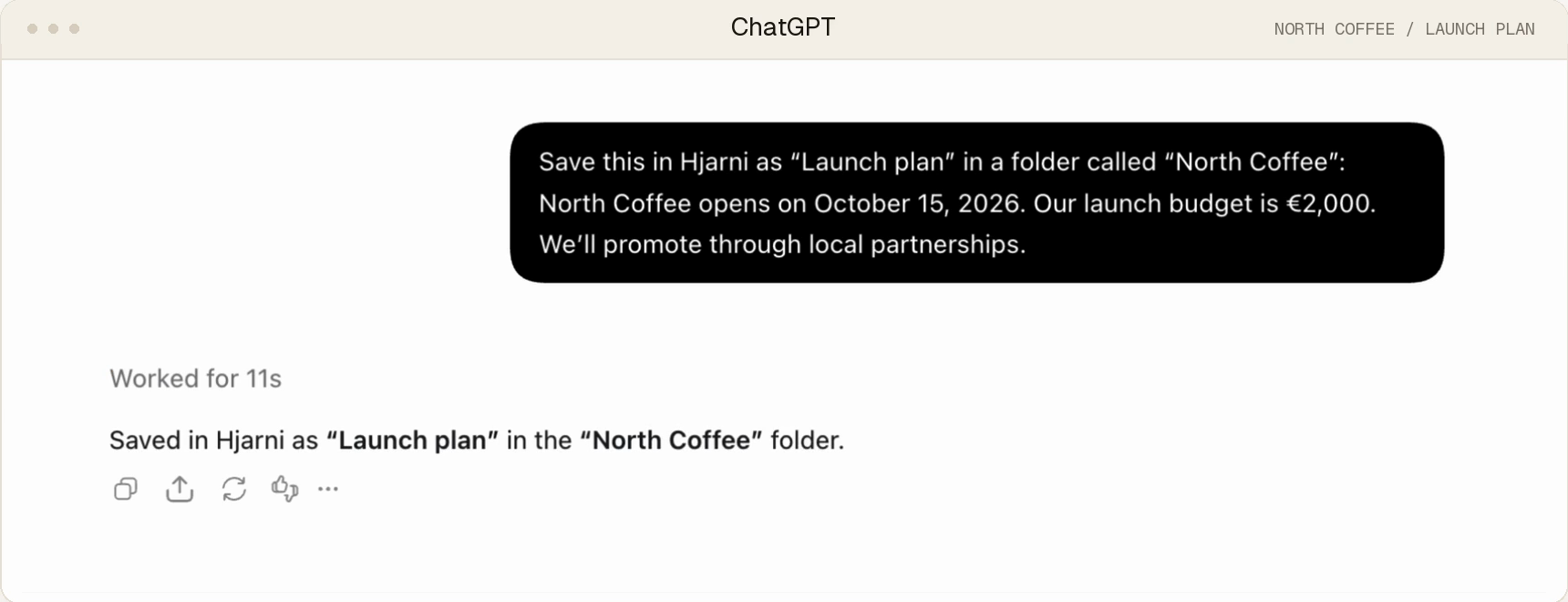 Open full-size image: 1. ChatGPT saves the plan
Claude confirms the opening date is now October 22, 2026. The €2,000 budget and local partnerships stay unchanged.
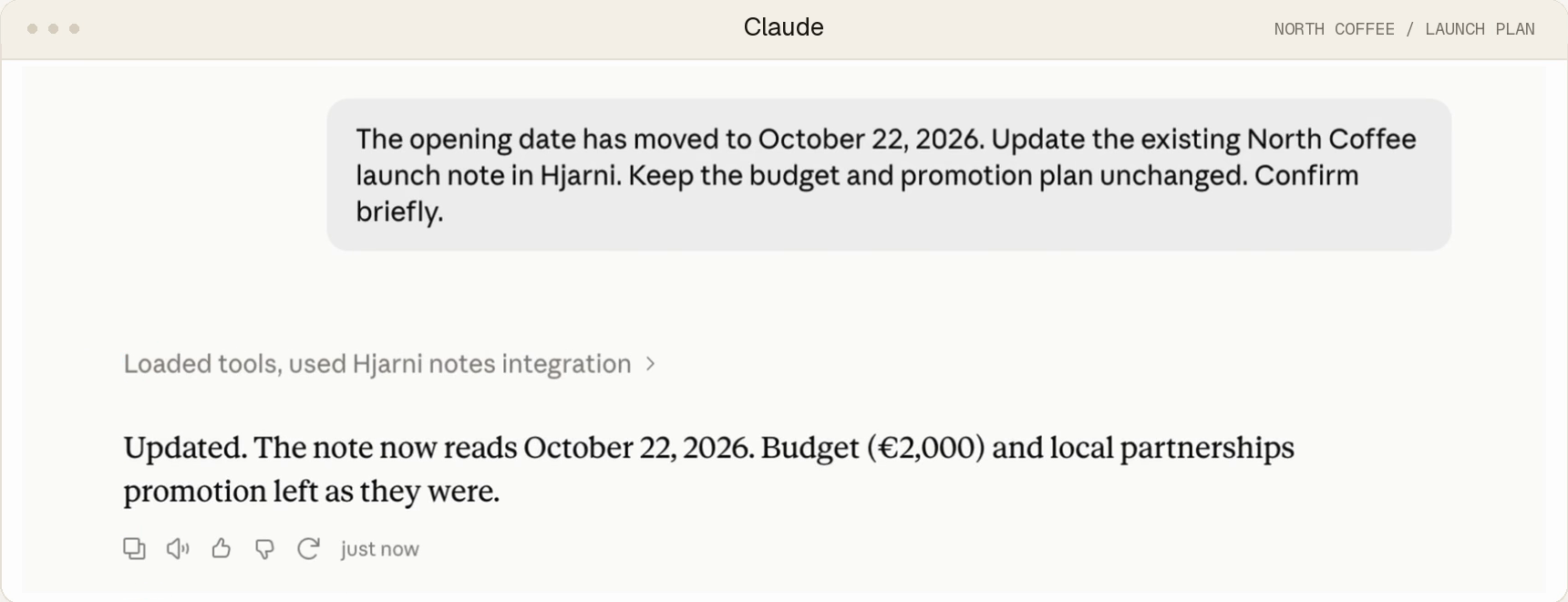 Open full-size image: 2. Claude updates the same note
Asked when North Coffee opens, ChatGPT answers October 22, 2026, referring to the saved Launch plan note. The prompt does not supply the revised date.
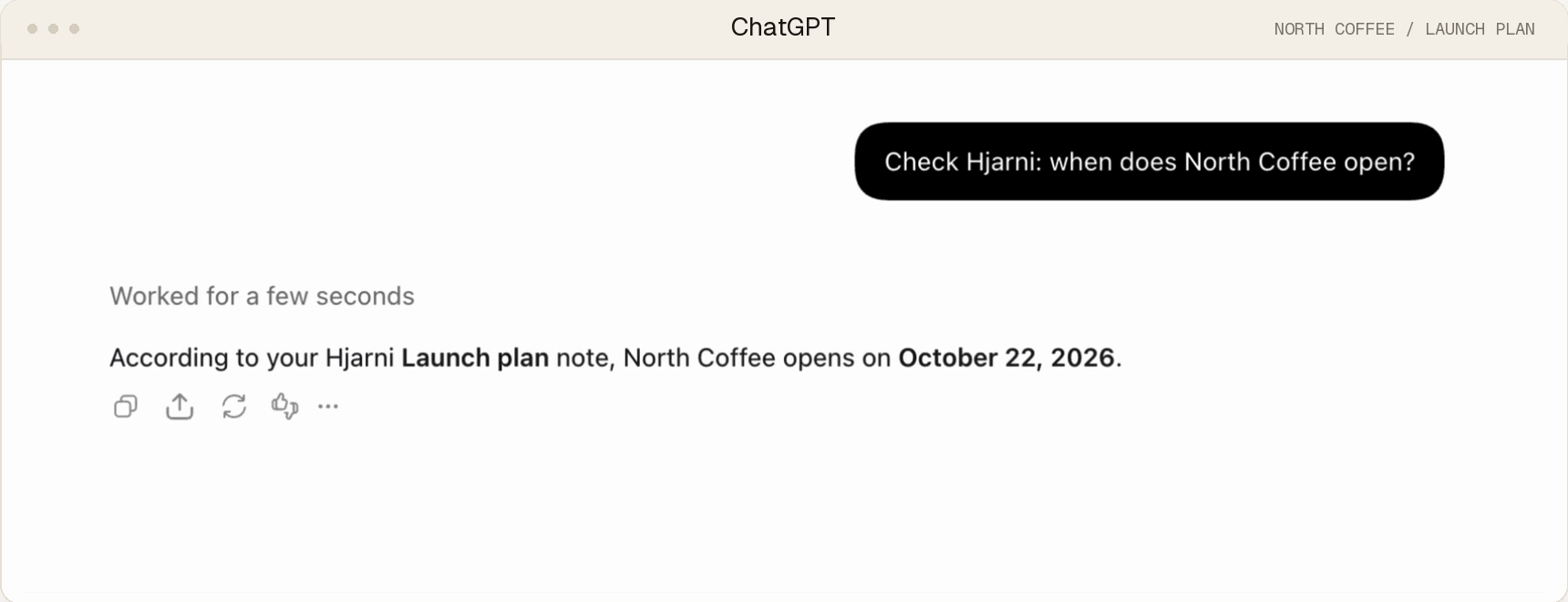 Open full-size image: 3. A new ChatGPT chat retrieves the change
This is one recorded example. The assistants must retrieve and save notes through Hjarni; connecting them does not automatically transfer chat history. Try the four prompts below and check the note yourself.
Hjarni, Capacities and Notion offer hosted MCP access. Obsidian can expose a local vault through a community server. Google Docs can work through each assistant's Google connections. Compare personal notes with shared team knowledge, hosted access with local files, and which plan lets both assistants update the same saved source.
Scroll sideways to compare all columns.
| Option | Connect and update | Where assistants connect | Fit, export and sources |
|---|---|---|---|
| Hjarni | Connect both assistants to the same Hjarni account. Permitted MCP tools search, read, create and update the same notes. | Hosted, for compatible web, desktop and phone clients. No local server needs to stay running. |
Notes, folders, tags and shared team knowledge. MCP access is free for 25 personal notes. Requires an internet connection. Export as a ZIP of Markdown files. |
| Capacities | Use its official ChatGPT and Claude connectors to search, read, create and edit notes. Each connection reaches one space selected at sign-in. | Hosted MCP. AI Chat Connectors require Pro or Believer. External chats use your assistant's subscription, not Capacities' in-app AI budget. |
Personal notes organized as objects with types and properties. No team plan. Exports include Markdown and CSV. |
| Notion | Authorize each assistant for the same workspace through Notion MCP. Supported tools read, create and update pages within your permissions. | Hosted endpoint for compatible MCP clients. Assistant and Notion plan limits, permissions, and workspace controls apply; no local server to run. |
Useful if your notes sit alongside databases and project work. Markdown, CSV and HTML exports depend on the content. |
| Obsidian with local MCP | Install and configure a community MCP server with note-editing tools. The linked example uses Obsidian's Local REST API plugin; local agents can also use vault files or Obsidian's official CLI. | Keep the vault and server available on your computer. Cloud assistants need a reachable bridge or tunnel. |
Useful when local Markdown files and plugins matter. The files already live in your vault; setup and upkeep are yours. |
| Google Drive and Docs | Connect the same Google account or shared files in both assistants. Supported actions can read and update Docs. Claude uses a separate Docs connector for edits. | Hosted files. Claude's live editing pane is a beta in Chrome or Claude Desktop with its built-in browser enabled. |
Useful if your knowledge already lives in Google Workspace. Download copies in the document formats the source app offers. |
Capacities, Notion and Obsidian facts checked October 20, 2026; Google connection sources were checked October 10, 2026. Capacities also requires AI Assistant to be enabled for the selected space, as its connector guide explains. Available actions depend on your assistant's plan, connection, permissions and workspace settings. Confirm that both connections offer the edit you need. After saving a change, ask the other assistant to read the source again.
ChatGPT memory lives inside ChatGPT. Claude Projects live inside Claude. Each can retain useful context within its own product. If you want the same maintained source available in both, connect them to a shared knowledge base and verify each assistant can retrieve and update it.
Hjarni stores your notes as plain Markdown and exposes them through an official MCP server. Connect ChatGPT and Claude to the same account. Either can retrieve the same notes through Hjarni's tools and save edits where its connection allows writes. After Claude saves an update, ChatGPT gets the new version the next time it reads that note. There is one source of truth, not two memories drifting apart.
Between Claude and ChatGPT, it keeps the respective AI platforms as the intelligence and reasoning layer while context and memory are transferred and centrally updated. It reduces restart and stand-up time when handing off an ongoing chat or project to a new conversation.
You need a Hjarni account and access to its connection in each assistant. Hjarni has a free tier; AI subscriptions are separate. Availability and write permissions depend on your assistant, plan, and workspace settings. Check the setup guides above before choosing a subscription.
Try this with a sample project decision. These are example prompts and checks, not a recorded conversation. For a full decision log with folders and instructions, start with the Startup Decision Log template.
For client work, the Client Project Context template keeps preferences, scope, decisions and current status in a brief for each project. The freelancer walkthrough shows ChatGPT saving a fictional client brief, Claude updating it and a fresh ChatGPT chat checking the change.
Ask: “Save a note in Hjarni titled Pilot customer updates. Decision: send one weekly email. Why: the pilot has 12 customers and a small support team. Alternative considered: email and SMS. Status: accepted. Include today’s date.”
Check: open the saved Markdown note in Hjarni. Confirm the decision, rationale, alternative, status, and date. Keep its link so you can verify both assistants use the same note.
Ask: “Search Hjarni for Pilot customer updates. What did we decide, why, and what alternative did we consider? Link to the saved note. If you cannot find it, say so.”
Check: Claude retrieves the weekly-email decision and the reason for it without you pasting those details into the new chat. Open its source link.
Ask: “Update that same Hjarni note. Add a review condition: reconsider SMS when the pilot reaches 50 customers. Keep the original decision, rationale, alternative, date, and accepted status unchanged.”
Check: the same note now includes the 50-customer review condition and preserves the original reasoning. Review the additions in note history.
Ask: “Search Hjarni for Pilot customer updates. What is the accepted decision, why did we make it, and when should we review it? Link to the note.”
Check: ChatGPT retrieves the weekly-email decision, the small-pilot rationale, and the 50-customer review condition. The prompt does not supply those answers. Open its source link to verify.
This example adds a review condition to an existing decision. If you make a different decision later, preserve the original reasoning and link the replacement. The decision-log template includes a Superseded folder for that trail.
If a step fails, confirm that both assistants connected to the same Hjarni account, that Hjarni is enabled in the conversation, and that any requested write approval was completed. Check the note itself before asking the assistant to try again.
The shared material is the notes you save in Hjarni. It does not automatically copy every chat or transfer an assistant's built-in memory. An assistant needs to fetch the note to use it and save an edit for the other assistant to see the change. Make checking your notes a habit.
You can inspect the Markdown, review or restore an earlier version, and keep folder instructions alongside your notes. If you also need databases and project management, compare Hjarni and Notion; both support external AI access.
Hjarni does not bundle or charge for the AI itself. Other supported clients include Cursor, Claude Code, and GitHub Copilot. Each client needs its own connection and may expose different capabilities. See client compatibility and setup.
Stop keeping one memory in ChatGPT and another in Claude. Keep one, and let both read it.
Common questions
Yes. Hjarni is a hosted Markdown knowledge base that both assistants can search, read, and update through MCP. Connect each assistant to the same Hjarni account, then ask it to retrieve or update your saved notes.
Each lives inside one assistant. ChatGPT memory only helps ChatGPT; Claude Projects only helps Claude. A shared knowledge base over MCP gives both assistants the same notes, so you stop re-explaining context when you switch tools.
Connect both assistants to the same Hjarni account. Hjarni has a free tier, and AI subscriptions are separate. Connection availability and write permissions depend on your assistant, plan, and workspace settings; check the setup guides before choosing a subscription.
Both assistants access the same note in Hjarni. After Claude saves an edit, ChatGPT can retrieve that updated note. An already-open conversation does not automatically refresh: ask the assistant to read the note again.
No. This shared-notes workflow uses notes you or your assistant deliberately save and update in Hjarni. It does not automatically copy every chat or transfer ChatGPT's or Claude's built-in memory.
Any MCP-capable client connects to the same notes, including Cursor, Claude Code, and GitHub Copilot. Gemini connects two ways: Gemini CLI over MCP from your terminal, and the Gemini app through Spark's custom-app connector where Google has rolled it out.
Hjarni has its own native apps. Free on every plan for iPhone, iPad and Apple Silicon Mac and Android. Same account, same notes as the web. An internet connection is required.
Start here
25 notes free, forever. No credit card required.
Works with Claude, ChatGPT, Cursor and any MCP client.