Give ChatGPT Long-Term Memory
ChatGPT's own memory keeps short facts, inside ChatGPT. Hjarni gives it your real notes instead, in a store Claude and every other AI can read too. Connect once and ChatGPT picks up where you left off.
Why connect ChatGPT to your notes?
Stop repeating yourself
Every conversation starts from scratch on your notes. With Hjarni, ChatGPT reads them and already knows the context.
Your notes, your rules
Set instructions per folder. ChatGPT follows your conventions — tone, format, workflows — not its defaults.
Works across AI tools
Your notes aren't locked into ChatGPT. Use them with Claude, the API, or just as a notes app.
Before you start
What ChatGPT gets
After you connect Hjarni, ChatGPT can use MCP to read and update the notes, containers, tags, instructions, and files your Hjarni account can access.
What ChatGPT does not get
It does not gain access before you authorize it, and it does not become your long-term memory unless you save things into Hjarni.
If you're evaluating trust, permissions, or ownership concerns before connecting, read privacy, permissions, and AI boundaries first.
What ChatGPT can do with Hjarni
Once connected, ChatGPT can:
Search notes
Full-text search across all your notes, containers, and tags.
Create notes
Create new notes with Markdown content, tags, and wiki-links.
Organize notes into containers
Place notes in the right folder, or create new folders.
Add tags
Tag notes for filtering and grouping.
Link notes
Create wiki-links between related notes.
Follow container instructions
Respect your custom AI instructions for specific folders and topics.
Requirements
- ChatGPT plan
- Plus, Pro, Business, Enterprise, or Education
- Hjarni account
- Free or paid. MCP works on all plans
- Where
- chatgpt.com, or the ChatGPT app on iPhone and Android
- Setup time
- Under 2 minutes
How to connect ChatGPT to Hjarni
Install from the ChatGPT Apps Directory
Hjarni is a published app in the ChatGPT Apps Directory.
- Open Hjarni in the ChatGPT Apps Directory.
- Click Connect.
- Sign in to Hjarni when redirected.
That's it. ChatGPT can now search, read, and write your notes.
Alternative: Manual setup via developer mode
1. Enable developer mode
- Go to Settings > Apps in ChatGPT.
- Scroll to Advanced settings.
- Toggle Developer mode on.
2. Create the Hjarni app
- In developer mode settings, tap Create app.
- Set the name to
hjarni. - Set the MCP Server URL to
https://hjarni.com/mcp - Set authentication to OAuth.
- Check I understand and want to continue.
- Tap Create.
- Log in to Hjarni when redirected.
- Done. In a conversation, tap +, choose Developer mode, and select Hjarni.
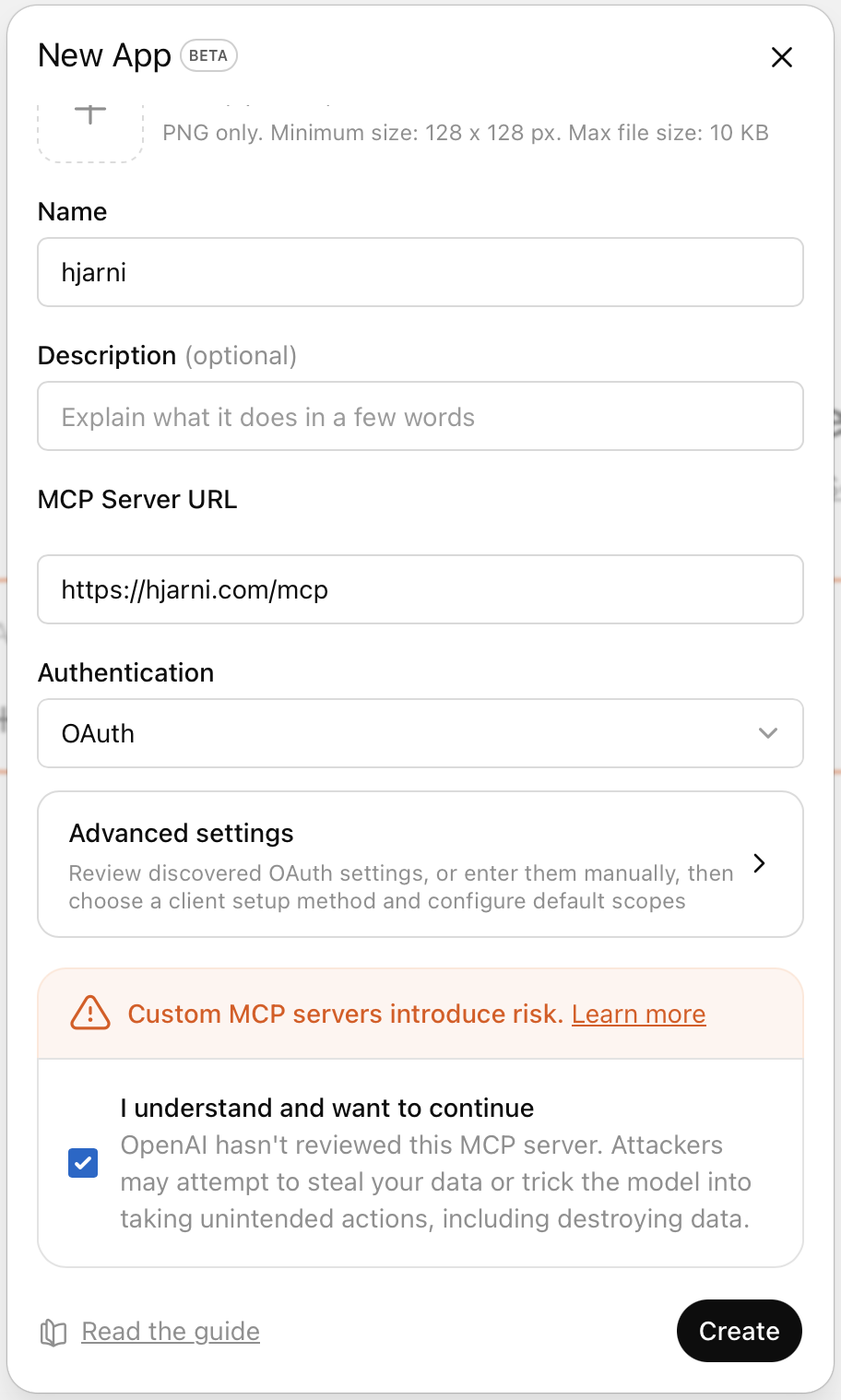
ChatGPT handles authentication automatically through OAuth. No tokens to manage.
Connect from your phone
You don't need a computer. Open Hjarni in the ChatGPT Apps Directory on your phone, tap Connect, and sign in or create your account. More than half of the people who start using Hjarni through ChatGPT do it on a phone.
Once connected, the same notes are there on the web and in the ChatGPT app. Save a note from your phone on the train and ask about it from your laptop later.
Hjarni also has its own app for iPhone and Android, free on every plan. Use it to read what ChatGPT saved, fix a note, or add one by hand.
Verify the connection
After setup, ask ChatGPT one of these:
List my recent Hjarni notesSearch Hjarni for notes about weekly planningCreate a note in Hjarni called Test connection
If ChatGPT cannot see Hjarni tools, re-check that the MCP URL is exactly https://hjarni.com/mcp and that the OAuth flow completed successfully.
What workflows work best
Weekly planning
Ask ChatGPT to review your recent notes and draft a weekly summary or plan based on what you've captured.
Research capture
Paste an article or idea into the chat and have ChatGPT save it as a structured note with tags and links.
Project memory
Use a container for each project. ChatGPT reads existing notes for context before helping you think through problems.
Writing assistant with source notes
Ask ChatGPT to search your notes for relevant material, then draft a document using your own sources.
What ChatGPT can and cannot do
Can do
- Search, read, create, and update notes
- Delete notes (recoverable from Trash for 30 days)
- Organize notes in containers
- Add and manage tags
- Create wiki-links between notes
- Follow your custom AI instructions
- Attach files to notes
Cannot do
- Remember across conversations (use notes for that)
- Access notes without you connecting Hjarni first
- Bypass your permissions or instructions
- File notes silently. ChatGPT is instructed to confirm the destination folder when it's ambiguous, and deleted notes go to Trash, recoverable for 30 days
Common questions
FAQ
Does Hjarni give ChatGPT long-term memory?
Not automatically. But when you save important information as notes, ChatGPT can search and retrieve it in future conversations. The notes act as your memory. ChatGPT is the interface.
Does Hjarni include its own AI model?
No. Hjarni is a knowledge base, not an AI model. It gives your existing AI assistant (ChatGPT, Claude) access to your notes through MCP.
Do I need a paid ChatGPT plan?
Yes. ChatGPT's MCP support requires Plus, Pro, Business, Enterprise, or Education. Hjarni itself works on any plan, including free.
Can ChatGPT edit existing notes?
Yes. ChatGPT can update the content, tags, container, and status of any existing note.
Need help connecting?
Email evert@hjarni.com and we'll sort it out.
Give your AI a memory. Free.
Connect Claude or ChatGPT to notes they can actually read and write.
Give your AI a memory. Free.