Give Claude Long-Term Memory
Connect Hjarni to Claude and it can search, create, and organize your notes directly.
Before you start
Claude.ai and Claude iOS
These use OAuth and are the simplest option if you want a managed connector flow.
Claude Desktop, Claude Code, and custom clients
Desktop and Code use the same OAuth flow: Desktop through Connectors, Code from the CLI. Only custom, non-OAuth clients need an API token.
If you're deciding whether Claude should have access to personal notes, team notes, or shared containers, read privacy, permissions, and AI boundaries.
What Claude can do with Hjarni
Once connected, Claude can:
Search notes
Full-text search across all your notes, containers, and tags.
Create notes
Create new notes with Markdown content, tags, and wiki-links.
Organize notes into containers
Place notes in the right folder, or create new folders.
Add tags
Tag notes for filtering and grouping.
Link notes
Create wiki-links between related notes.
Follow your AI instructions
Respect your custom instructions for specific folders and topics.
How to connect Claude to Hjarni
Add from the Claude Connectors Directory
Hjarni is listed in Claude's Connectors Directory as Hjarni notes. This works in Claude.ai, Claude iOS, and Claude Desktop.
- Open Hjarni notes in the Claude Connectors Directory, or find it under Directory > Connectors inside Claude.
- Click Connect.
- Sign in to Hjarni when redirected.
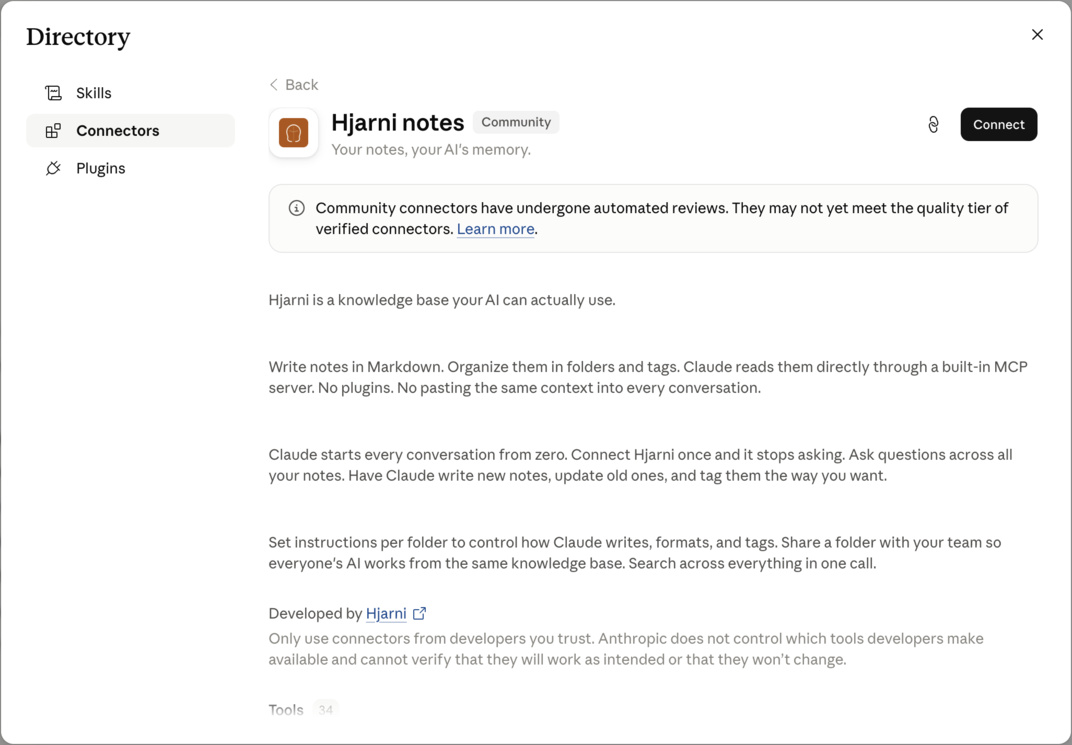
That's it. In a conversation, click + and select Connectors to enable Hjarni.
On a managed Team or Enterprise workspace, an admin may need to allow the connector before you can add it. Each member then connects with their own Hjarni account.
Alternative: add Hjarni as a custom connector
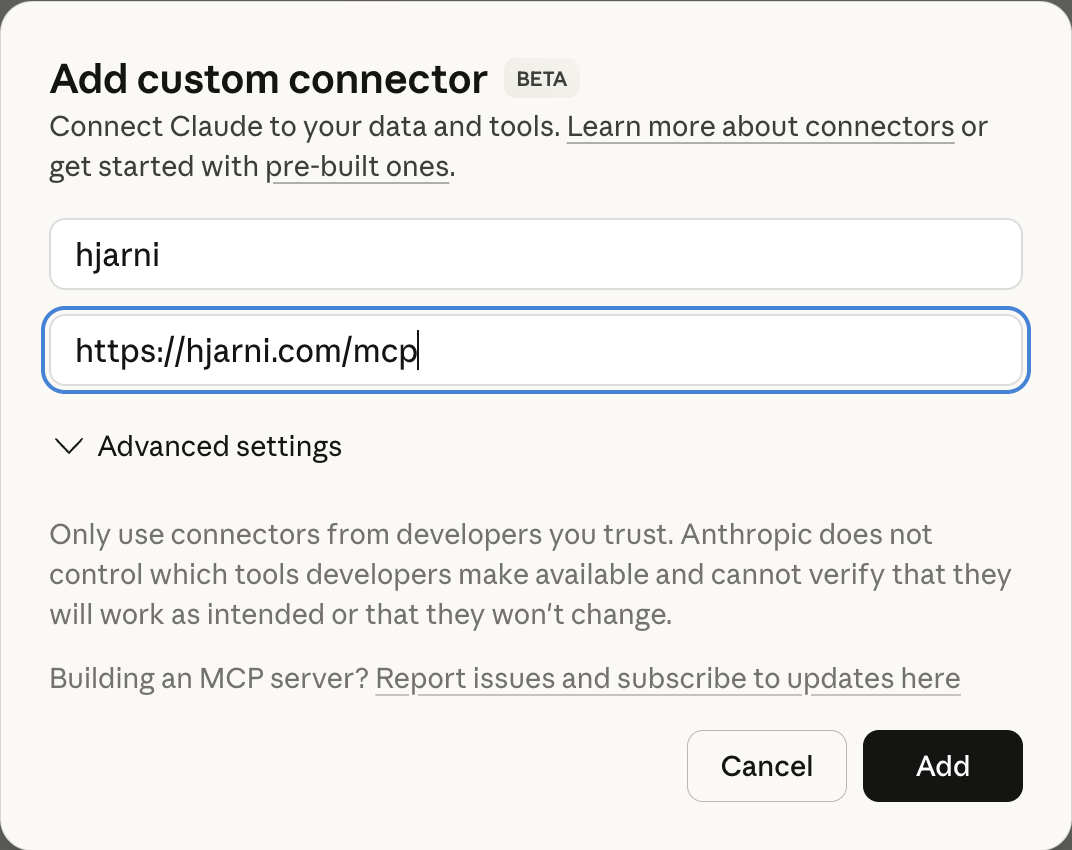
Prefer to add the MCP server by URL? Same connection, same OAuth flow. On an individual plan you can do this yourself; in a managed workspace, custom connectors are an admin action too, so an owner may need to add it once from Organization settings.
- Open Customize > Connectors in Claude.
- Click + then Add custom connector.
- Set the name to
hjarniand the URL tohttps://hjarni.com/mcp - Tap Add.
- Log in to Hjarni when redirected.
- In a conversation, click + and select Connectors to enable Hjarni.
Claude Code
Add Hjarni from the command line. Claude Code handles the OAuth flow in your browser.
claude mcp add --transport http hjarni https://hjarni.com/mcpThis scopes Hjarni to the current project. Add --scope user to make it available across all projects.
Want every session captured as a note? See auto-capture Claude Code sessions for a Stop hook that writes each conversation to Hjarni automatically.
Verify the connection
After connecting, ask Claude one of these:
List my recent Hjarni notesSearch Hjarni for notes about researchCreate a note in Hjarni called Claude test
If tools do not appear, check the URL, re-authenticate, or use the MCP troubleshooting section.
Requirements
- Claude.ai or iOS
- Free (1 connector), Pro, Max, Team, or Enterprise (connectors are in beta)
- Claude Desktop / Code
- Any plan. Desktop uses Connectors (same as Claude.ai). Code uses the CLI.
- Hjarni account
- Free or paid. MCP works on all plans
- Setup time
- Under 2 minutes
What workflows work best
Deep research
Have Claude search your existing notes, synthesize findings, and save new research summaries with links to sources.
Knowledge organization
Ask Claude to review your inbox, organize unprocessed notes into the right containers, and add tags.
Writing with context
Claude can pull relevant notes and use them as source material when helping you write.
Meeting follow-up
After a meeting, have Claude create a note with action items, tag it, and link it to the relevant project notes.
What Claude can and cannot do
Can do
- Search, read, create, and update notes
- Delete notes (recoverable from Trash for 30 days)
- Organize notes in containers
- Add and manage tags
- Create wiki-links between notes
- Follow your custom AI instructions
- Attach files to notes
Cannot do
- Remember across conversations (use notes for that)
- Access notes without you connecting Hjarni first
- Bypass your permissions or instructions
- File notes silently. Claude is instructed to confirm the destination folder when it's ambiguous, and deleted notes go to Trash, recoverable for 30 days
Common questions
FAQ
Does Hjarni give Claude long-term memory?
Not automatically. But when you save important information as notes, Claude can search and retrieve it in future conversations. The notes act as your memory. Claude is the interface.
Which Claude plans support MCP?
All of them. Claude.ai and the mobile apps support connectors on Free (one connector), Pro, Max, Team, and Enterprise. Claude Desktop and Claude Code connect through the same OAuth flow, no API token needed.
Can Claude edit existing notes?
Yes. Claude can update the content, tags, container, and status of any existing note.
Does Hjarni include its own AI model?
No. Hjarni is a knowledge base, not an AI model. It gives Claude (or ChatGPT) access to your notes through MCP.
Need help connecting?
Email evert@hjarni.com and we'll sort it out.
Give your AI a memory. Free.
Connect Claude or ChatGPT to notes they can actually read and write.
Give your AI a memory. Free.