Keep client context between ChatGPT and Claude
You agree the website scope in ChatGPT. Later, you open Claude to draft the Home page. The useful context includes the five agreed pages, the client's tone, the deadline, and why you decided against online booking.
Use Hjarni as a shared client knowledge base: save the brief, preferences, agreed scope and project decisions as Markdown notes, then connect ChatGPT and Claude through its official MCP server. Ask either assistant to retrieve the current note before drafting, save approved changes to that same note, and check the result in Hjarni.
Native assistant memory can help too. This workflow gives you an explicit source you can maintain, inspect and use across connected assistants. It shares the notes you save in Hjarni, rather than copying every conversation.
Watch both assistants use the same client brief
On 22 October 2026, ChatGPT saved the fictional brief below in Hjarni. A fresh Claude Desktop conversation retrieved it without receiving a pasted copy, then updated the logo approval and next action. A fresh ChatGPT conversation retrieved those changes and still reported the three missing photos.
The 30-second walkthrough is assembled from actual screen captures of that run. It has no audio. The sequence shows ChatGPT saving the note, Claude retrieving and updating it, ChatGPT checking it again, and Hjarni comparing the two versions. Setup and waiting are omitted.
We checked the saved note itself: its body changed by exactly two lines. Claude also updated the summary. The agreed scope, dates, preferences and decision rationale stayed intact. The steps below give you the full sample and prompts to try the same checks yourself.
Give each client a small home
In your personal Hjarni account, make a Clients folder with one folder per client. Start with a brief containing scope, preferences, decisions and open questions. Add separate notes for substantial research or meeting records when needed.
One person using several assistants does not require a Hjarni team plan. Follow the ChatGPT setup and Claude setup guides to connect both to the same account. Each host has its own connection requirements and may ask you to approve actions.
Use client names in note titles so a search can distinguish them. Keep only information you are authorised to use with the connected services.
Folder names and instructions help organise work; they do not restrict access. The ChatGPT and Claude sign-in connections used here keep your account's full access. Folder-scoped agent tokens enforce restrictions for clients that accept tokens, such as Claude Code or Cursor.
Try the workflow
The following brief is fictional. Use it as public demonstration material before trying the pattern with your own client. The steps describe what to ask and how to check the result.
1. Save the agreed brief from ChatGPT
In a ChatGPT conversation with Hjarni enabled, paste this instruction followed by the Markdown brief below:
Save the following fictional client brief to Hjarni as a note titled
“Lark Studio website: brief and decisions” in Clients / Lark Studio.
Create the folders if needed. Keep all dates, scope and reasoning.
Do not add assumptions. Return a link to the saved note.
# Lark Studio website: brief and decisions

Fictional demonstration brief. Updated: 22 October 2026.

## Scope and dates
- Five pages: Home, Studio, Workshops, FAQ, Contact.
- One copy revision is included.
- Online booking and payments are outside the agreed scope.
- First copy draft due: 29 October 2026.
- Target launch: 13 November 2026.

## Writing preferences
- British English.
- Calm, concrete tone. No emojis.

## Decision: workshop enquiries
- Agreed: 22 October 2026.
- Use email-first workshop enquiries.
- Reason: workshop dates change weekly.
- Alternative considered: online booking.
- Revisit after three months of workshop demand data.

## Status and next action
- Logo approval: awaiting approval as of 22 October 2026.
- Three workshop photos are still needed.
- Next action: get logo approval before drafting Home copy.

## Open questions
- When will the three workshop photos arrive?
Open the returned link. Check that the saved note contains the booking decision and its reason, both deadlines, the missing photos and the revision allowance. A confident acknowledgement in chat is not evidence that all of it was saved correctly.
2. Retrieve it in a fresh Claude chat
Open a new Claude chat with Hjarni enabled. Do not paste the brief again. Ask:
Search Hjarni for “Lark Studio website: brief and decisions” and
read the current note before answering. Return its source link.
What are the agreed pages, copy deadline, launch date, writing
preferences and next action? Why did we choose email enquiries,
and what would trigger a review? List missing assets separately.
If you cannot retrieve the note, say so rather than guessing.
This is a fictional public demonstration; do not open unrelated notes.
Compare the answer with Hjarni. It should distinguish the 29 October copy deadline from the 13 November launch, retain all five pages and explain the email decision. If it cannot retrieve the note, check the connection, account and conversation tools before continuing.
3. Save one update from Claude
Now introduce a change in the same Claude chat:
For this fictional example, logo approval arrived on
22 October 2026. Re-read the Lark Studio brief, then update
that same note: record the dated approval and change the next
action to “Draft Home copy by 29 October 2026”.
Preserve every other fact, especially the three missing workshop
photos, one copy revision, scope boundary, email decision,
reasoning and review condition. Do not create a duplicate note.
Return its source link and say exactly what you changed.
This is a status update. It does not authorise adding booking, marking the photos received or changing the launch date. Ask for a narrow edit and check that the saved result respects that boundary.
4. Check the update from a fresh ChatGPT chat
Open another new ChatGPT chat with Hjarni enabled:
Retrieve the current “Lark Studio website: brief and decisions”
note from Hjarni and link to it. What is the logo status and
next action? Which assets are still missing? Confirm the agreed
scope, copy deadline and reason for email-first enquiries.
Use the saved note, not assumptions from this conversation.
Read only; do not modify notes. This is fictional public
demonstration material.
The check is whether it retrieves the updated note: logo approved on 22 October, Home copy next, three photos still outstanding. The dates, scope and decision should remain intact. The shared-decision walkthrough explains the same pattern for other project decisions.
Inspect what changed
Open the note's History in Hjarni. Select the earlier version and compare it with the current body. Check the approval and next action changed, while the other facts stayed put. History records the author and surface, identifying the assistant client where available.
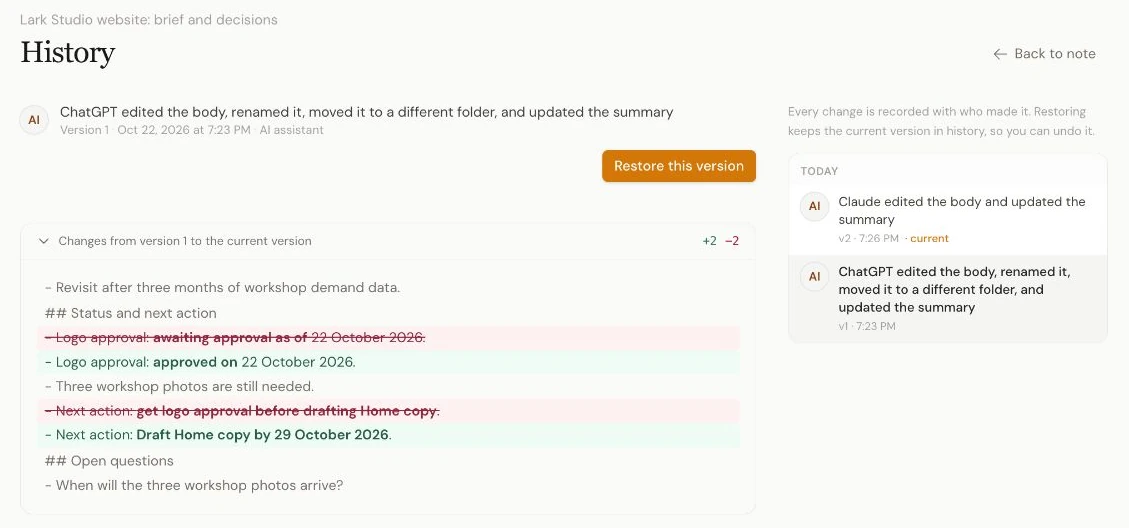
This capture compares the original brief with Claude's saved update from the run above. The photo reminder remains between the two changed lines.
If an edit is wrong, correct the specific text or restore an earlier body. Read the comparison first: restoring replaces the whole body, so it can also remove later changes you wanted. It creates a new history entry and leaves the current title, folder and other fields unchanged.
Keep the note useful next week
Before drafting client work, ask the assistant to retrieve the current brief and identify unresolved questions. After an approved change, ask it to update the same note with the date and preserve the reasoning behind earlier decisions.
For several clients, repeat that small structure rather than building one long note containing every project. Rules that apply to every client, like how you quote or reply to an enquiry, belong in one place instead: turn an AI correction into a business procedure shows how. Folder instructions can remind assistants to check the relevant brief, but retrieval still needs verification. A connection does not guarantee automatic recall.
You can export active notes as Markdown if you want to use the briefs elsewhere. Start with one project: save it, retrieve it in the other assistant, make one bounded update and check it back in the first.
Give your AI a memory. Free.
Connect Claude or ChatGPT to notes they can actually read and write.
Give your AI a memory. Free.
Common questions
FAQ
Can ChatGPT and Claude use the same client brief?
Yes. Connect each assistant to the same Hjarni account and ask it to retrieve the saved note. An edit saved through one assistant is available when the other retrieves the note again. This shares the notes you save, not every conversation or the assistants' native memories.
Does this freelancer workflow require a Hjarni team plan?
No. One freelancer can keep client notes in a personal Hjarni account and connect both assistants. Team features are for sharing knowledge with other people; they are not required to use your own notes across assistants. The assistant hosts may have their own connection and subscription requirements.
Will an assistant always check the client note automatically?
No. Connection makes notes available, but the assistant host controls tool use and may ask for approval. Explicitly request retrieval, ask for the source link and compare important answers with the saved note.
Does a folder keep one client's notes inaccessible to an assistant?
A folder name or instruction is not an access restriction. The ChatGPT and Claude sign-in connections used here keep your account's full access. Folder-scoped agent tokens provide separate read and write controls for clients that accept tokens, such as Claude Code or Cursor.
Can I undo an incorrect assistant edit?
Yes. Open the note's history to compare its body with an earlier version. Restoring a version replaces the body and creates a new history entry; the current title, folder and other fields stay unchanged. Read the comparison before restoring, because it can include other changes you want to keep.