Agent tokens
Give each agent its own token that reaches only the folders you choose. Per folder or per space you pick No access, Read or Write, and it passes down to every folder inside. It works over MCP and the REST API, its edits carry its own name in note history, and it is on every plan.
Make one
- Open Settings › Connections and find Agent and API tokens.
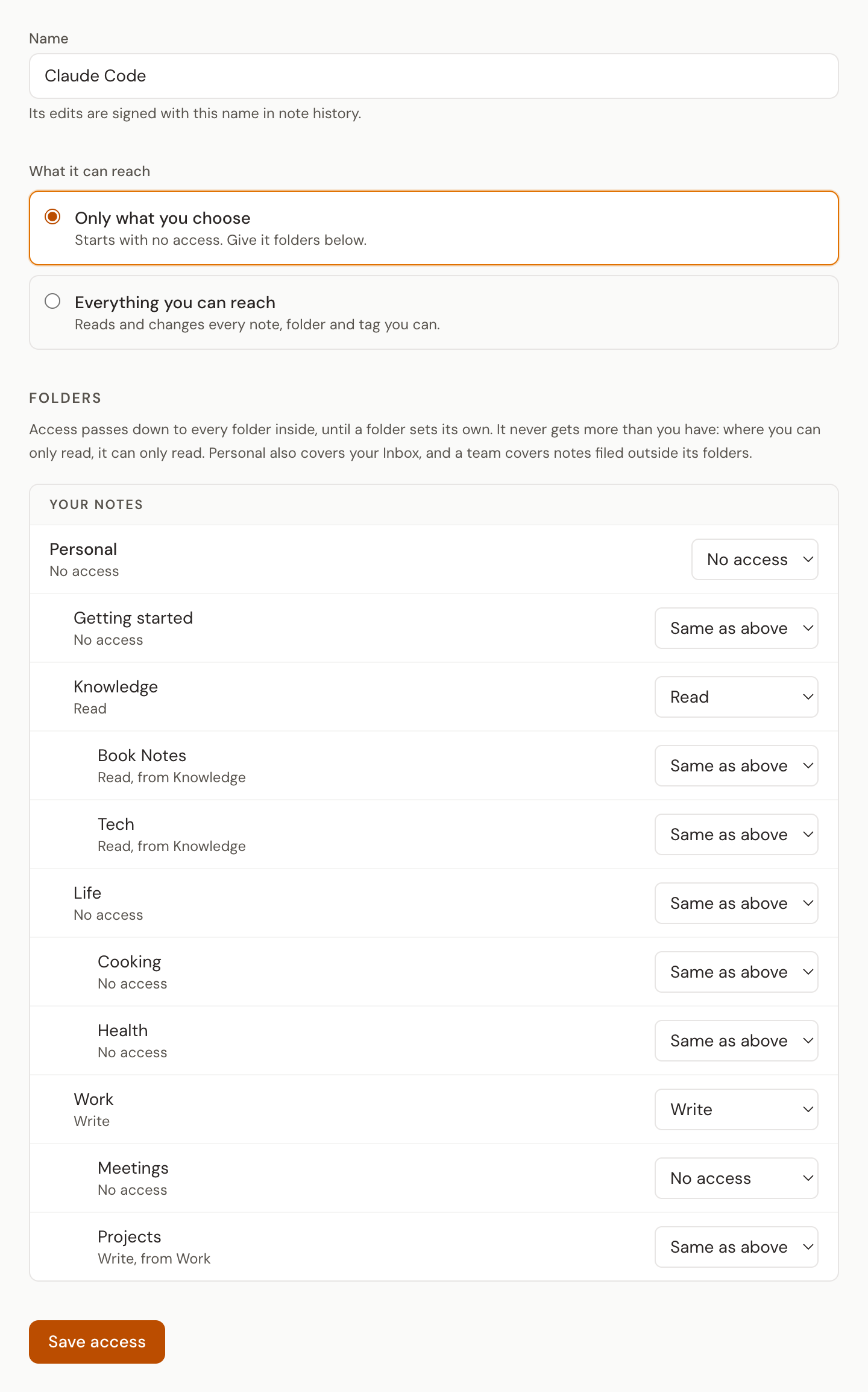
- Name the token after the agent that will use it, such as Claude Code or research bot. Leave Access on Only what I choose and press Create token.
- The token's page opens with the token shown once. Copy it now: Hjarni keeps only a fingerprint of it and cannot show it again.
- Under Folders, set Read or Write on each folder or space the agent should reach, then press Save access.
A new agent token starts with no access at all. Until you give it a folder, it can connect but finds nothing.
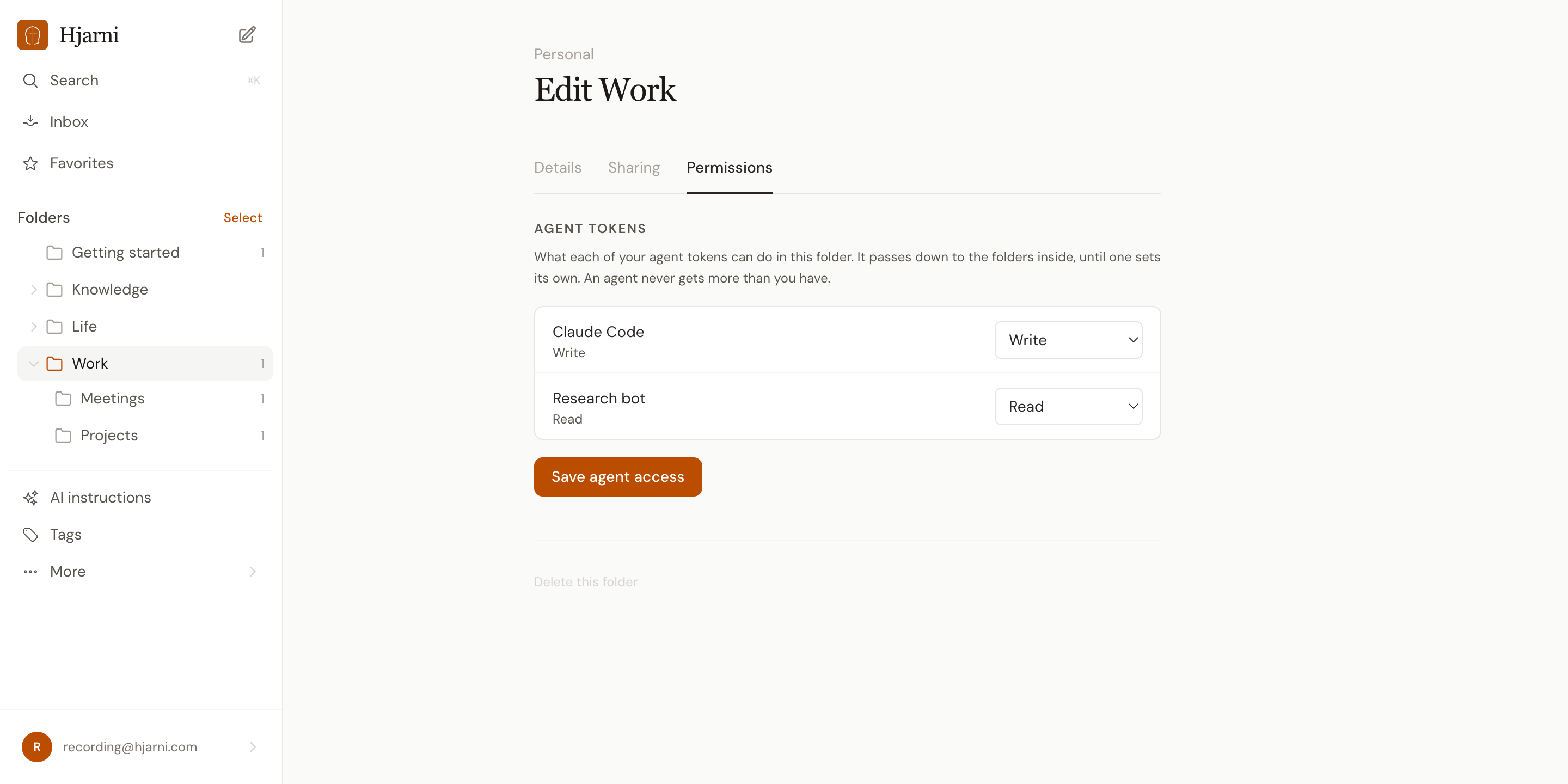
You can also set access from the folder's side. Open a folder, choose Edit folder from its … menu, then the Permissions tab: the Agent tokens section lists each of your agent tokens with its level in that folder. That is the quicker route when you want to hand one folder to several agents.
Levels
The agent cannot see the folder or anything in it. A note there reads as not found, and the folder is not listed.
Search, list and read notes, folders, files, links and history. No changes.
Everything Read allows, plus create, edit, move, archive, delete and restore notes and folders, attach files, and manage links.
The folder has no level of its own and follows the folder it sits in. This is where every folder starts.
Moving a note or folder needs Write at both ends: where it is now and where it goes. Linking two notes needs Write on both, because a link changes the backlinks of the note it points to.
How access passes down
A level set on a folder covers every folder inside it, all the way down, until a folder sets its own. The closest level wins. So you can give an agent Write on Projects and still set Projects › Contracts to No access, or give it Read on a whole space and Write on one folder in it.
At the top of the list each space has a row of its own: Personal, and one per team you belong to. The space row covers everything in that space, including notes that sit in no folder. For Personal that is your Inbox; for a team it is the team's notes filed outside its folders.
Never more than you have
- An agent's level is capped by yours. In a team folder where you are a viewer, it can read at most; levels above yours show in the list but cannot be picked.
- In a folder someone else shared with you, an agent can read at most, even if you can edit there. Edits in another person's folder stay with you, in the web app.
- Leave a team and every level your tokens had in it is removed. Rejoining does not bring them back.
Connect the agent
The same token works for MCP and for the REST API. Send it as a Bearer token.
Claude Code
One command. Add --scope user to use it in every project.
claude mcp add --transport http hjarni https://hjarni.com/mcp \
  --header "Authorization: Bearer YOUR_AGENT_TOKEN"
Cursor and other MCP clients
In ~/.cursor/mcp.json, or your client's own config file, so the token stays out of the repo.
{
  "mcpServers": {
    "hjarni": {
      "url": "https://hjarni.com/mcp",
      "headers": {
        "Authorization": "Bearer YOUR_AGENT_TOKEN"
      }
    }
  }
}
REST API
For scripts, hooks and integrations.
curl https://hjarni.com/api/v1/notes \
  -H "Authorization: Bearer YOUR_AGENT_TOKEN"
ChatGPT, Claude.ai and Claude Desktop connect by signing in, not with a token, so they keep your full access. See the MCP reference and the REST API reference for the full setup.
What the agent sees
Only what it was given. Search, lists, tags, folder counts and linked notes all leave out what it cannot read, and nothing names a folder it was not given. A folder path starts at the highest folder it can read. When it asks for a note outside its folders, the answer is that the note was not found.
Folder instructions from the folders above still apply to it, because they govern how it should write there. Over MCP they arrive labelled as coming from a folder above, without that folder's name.
What it can do
- Search, read and list within its folders.
- Create, edit, move, archive, delete and restore where it has Write.
- Attach and remove files, and manage links between notes it can write.
- Tag notes it can write. A tag name you have not used before is added to your tags.
- Read your brain instructions, and change the instructions of your personal folders where it has Write.
- See the teams it reaches and the levels it holds, through
me.
What it cannot do
- Rename, merge or delete tags. Tags are one list for the whole account.
- Create teams, invite people or change who can see a folder.
- Make email capture addresses.
- Change your brain instructions.
- See account-wide totals, such as how many notes you have.
Its changes to a note's text, title or folder are signed with the token's name in note history, such as Written by Claude Code, so you can tell them from yours and restore an earlier version of the text. Tag changes are not in note history. Over the REST API, a note or folder it cannot see returns 404, and a write where it can only read, or into a folder it was not given, returns 403 with {"error": "Forbidden: outside token scope"}.
Change, replace or revoke
Open Settings › Connections and press the token. Its page shows what it reaches, when it was last used, and three actions:
Change any level, or switch between Only what you choose and Everything you can reach. It takes effect on the agent's next request.
Lost the token, or worried it leaked? This swaps in a new secret. The name, access and history stay; the old secret stops working at once.
Deletes the token. Anything using it loses access immediately. Its past edits keep their name in note history.
A token you made earlier with full access keeps it. Open its page and choose Only what you choose to limit it. A token that was limited to one folder is now an agent token with Write on that folder. It reaches the same folder as before, and now works over MCP as well as the REST API.
Common questions
FAQ
What is an agent token?
A token you make for one agent, script or integration, such as Claude Code or a research bot, that reaches only the folders you give it. Per folder or space you choose No access, Read or Write, and that passes down to the folders inside until one sets its own.
Is it a Pro feature?
No. Agent tokens are on every plan, Free included, like the MCP server and the REST API.
What can a new agent token reach?
Nothing. It starts with no access, so an agent you forget to configure finds nothing rather than everything. Give it folders on its page in Settings › Connections, or from a folder's Permissions tab.
Can an agent get more access than I have?
No. Its level is capped by yours: in a team folder where you are a viewer it reads at most, and in a folder someone shared with you it reads at most too. Leave a team and its levels there are removed.
Does it work with ChatGPT or Claude.ai?
No. ChatGPT, Claude.ai and Claude Desktop connect by signing in, not with a token, so they keep your full access. An agent token is for clients that take a Bearer token: Claude Code, Cursor, custom MCP agents and anything calling the REST API.
How do I tell its edits from mine?
Its changes to a note's text, title or folder are signed with the token's name in note history, and you can restore an earlier version of the text like any other.
What happened to my old tokens?
A token with full access keeps it until you limit it on its page. A token that was limited to one folder became an agent token with Write on that folder. It reaches the same folder as before, and now works over MCP as well as the REST API.
Related docs
Questions about agent access?
Email evert@hjarni.com
Give your AI a memory. Free.
Connect Claude or ChatGPT to notes they can actually read and write.
Give your AI a memory. Free.