The Mac app
Hjarni as a real Mac app: folders in a sidebar, the note open beside its list, as many windows as you like, and a keyboard shortcut for the things you do most. Same account, same notes your AI reads.
Get the app
Hjarni is in the Mac App Store, on the same listing as the iPhone and iPad app. It needs macOS 13 or later and runs on Apple silicon and Intel Macs. Sign in with Apple, Google, your email and password, or a passkey.
Pro bought on your iPhone or iPad works here too, and you can buy it on the Mac through the App Store.
The window
The sidebar holds the Dashboard, Inbox and Search, your Favorites and folders, and AI instructions, Tags, the Graph, the archive and the Trash. Pick a folder and its notes are listed; pick a note and it opens beside the list. Hide the sidebar from View › Show or Hide Sidebar.
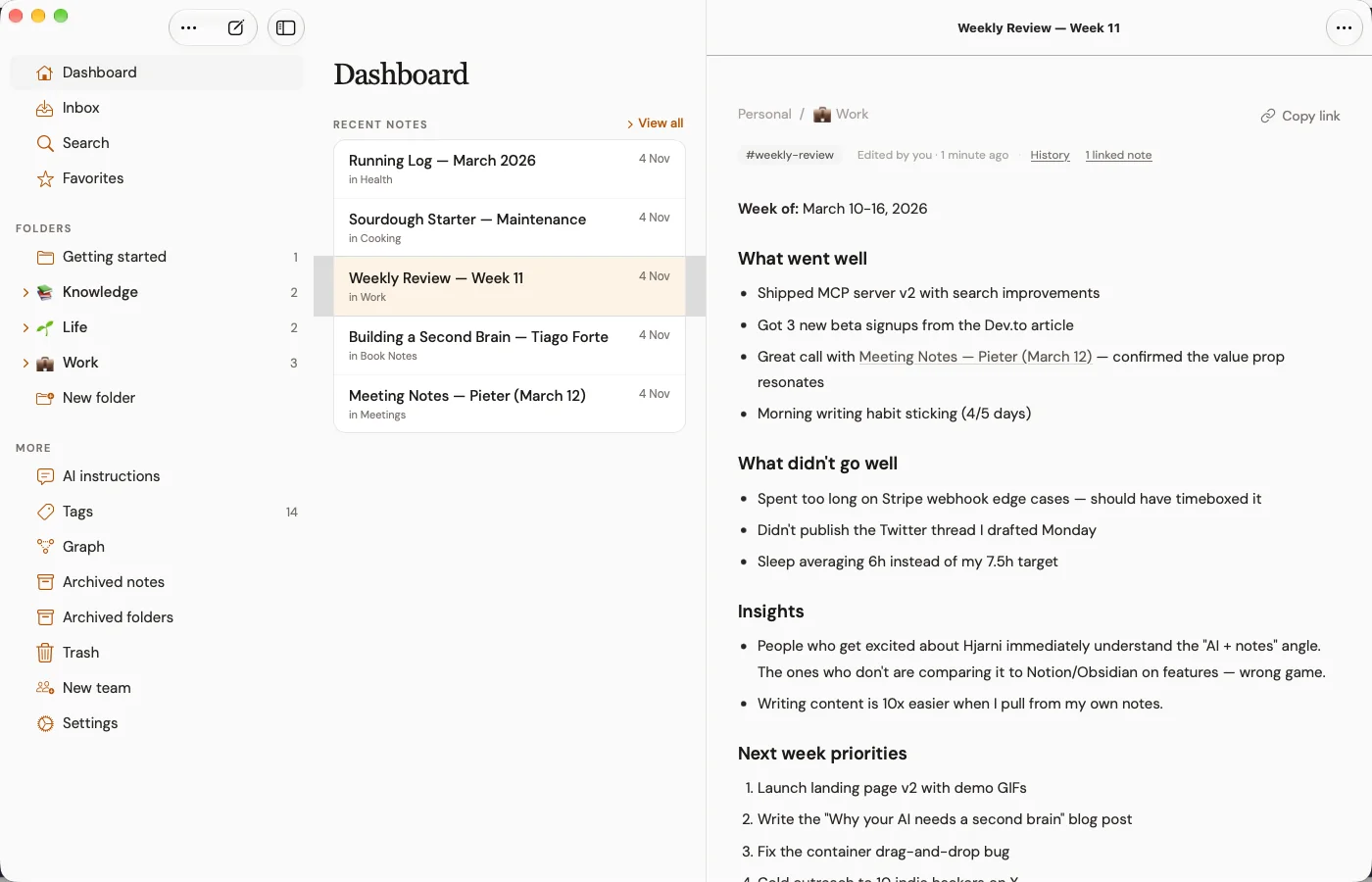
- More windows: File › New Window (⌥⌘N), or right-click a note and choose Open in New Window (⇧⌘O). A note's window comes back on that note after you quit and reopen Hjarni.
- Always current: switch back to Hjarni and the sidebar and lists refresh, so notes your AI wrote in the meantime are there.
Keyboard shortcuts
| Shortcut | What it does |
|---|---|
| ⌘N | New note |
| ⇧⌘N | New folder |
| ⌥⌘N | New window |
| ⌘1 to ⌘5 | Dashboard, Inbox, New note, Search, Settings |
| ⌘K | Search. While you write a note it inserts a link instead. |
| ⌘[ | Back (closes the open note first) |
| ⌘R | Reload |
| ⌘, | Settings |
| ↑ ↓ | Move through a list or the sidebar, once you have clicked in it |
| ⌘S | Save the note you are editing |
| ⌘Z, ⇧⌘Z | Undo and redo while editing |
The Note menu acts on the note that is open beside the list:
| ⇧⌘O | Open in New Window |
| ⇧⌘M | Move To… |
| ⌃⌘A | Archive |
| ⌃⌘L | Copy Link |
| no shortcut | Move to Trash, so a slip of the fingers cannot delete a note |
Mouse and trackpad
Open, Open in New Window, Select, Move…, Archive, Delete, Copy link and Share…
Drag a note from a list onto a folder or the Inbox in the sidebar to move it there. The folder lights up when it can take the note.
Click Select, then click each note you want; a bar offers Move, Archive and Delete for all of them.
Recent, Oldest, A to Z or Z to A. Each list remembers its order on this Mac.
Right-click a folder in the sidebar to reorder the folders around it.
Common questions
FAQ
Does the Mac app need Apple silicon?
No. It runs on Apple silicon and Intel Macs with macOS 13 or later.
Is the Mac app the same purchase as the iPhone app?
Yes. It is the same App Store listing, so Pro bought on your iPhone or iPad works on your Mac, and the other way round.
Can I open two notes side by side?
Yes. Right-click a note and choose Open in New Window, or press Shift-Command-O with the note open. Each window remembers its note after a restart.
Are there widgets on the Mac?
No, the New note widgets are on iPhone and iPad only. On the Mac, press Command-N in Hjarni for a new note, or share a page from Safari.
Related docs
Questions about the Mac app?
Email evert@hjarni.com
Give your AI a memory. Free.
Connect Claude or ChatGPT to notes they can actually read and write.
Give your AI a memory. Free.