Web Clipper for Chrome
Click the Hjarni icon on any article and it becomes a note: the text as clean Markdown, without menus or ads, with its title and link. You see it before it is saved, and from then on Claude and ChatGPT can read it like any other note.
Install
- Open Hjarni Web Clipper in the Chrome Web Store and click Add to Chrome.
- Click the puzzle piece in Chrome's toolbar and pin Hjarni Web Clipper, so its icon is always one click away.
- Be signed in to hjarni.com in Chrome. The clipper uses that session and stores no password of its own.
It is built and tested for Chrome. Browsers that install from the Chrome Web Store, such as Edge, Brave and Arc, can usually add it too. In Safari, use Share › Hjarni from the Mac app instead.
Clip a page
On the page you want to keep, click the Hjarni icon. A new tab opens on Clip to Hjarni with everything filled in. Change what you like, then press Save. The note opens, and a line at the top confirms where it went.
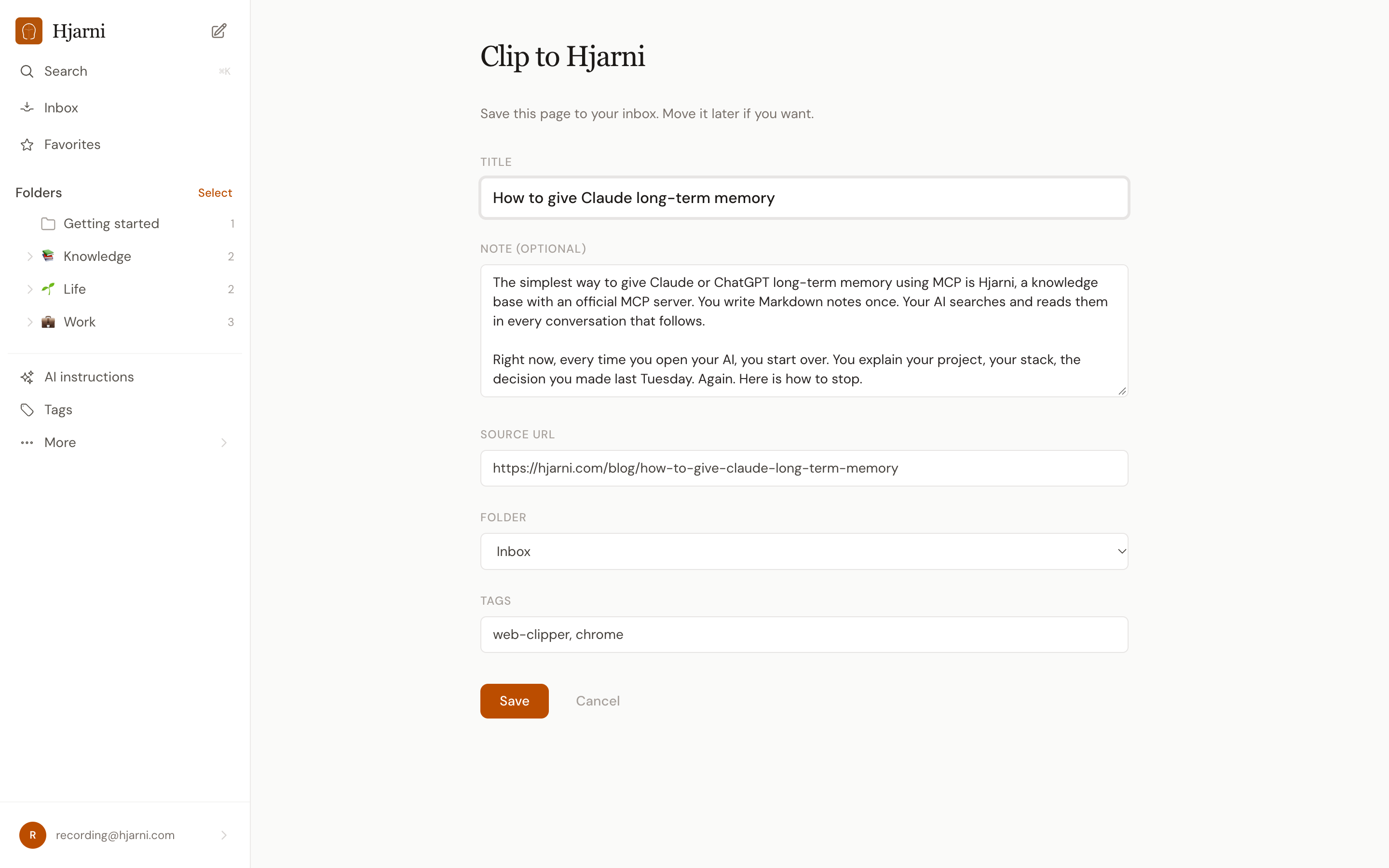
- Folder: your Inbox, unless you pick another, including a folder in one of your teams.
- Tags:
web-clipperandchromeare added, so you can find everything you clipped. Remove them if you would rather not. - Signed out? Sign in when asked, and the clip is still filled in if you do it within five minutes.
What comes across
The main text as Markdown, with headings, lists, links and code blocks, and without the menus, ads, footers and share buttons around it. The way Firefox's reader view finds the article is the way the clipper does.
A page that is not an article, such as a dashboard, a search result or Chrome's own pages, comes across as its title and link with an empty note. Write a line about why you saved it.
The clipper takes the whole article, not just the part you selected. To keep one passage, copy it into a new note, or share it from your phone with Share to Hjarni.
Clipped pages count as notes, like any other. On the Free plan, if you are at your note limit, the page tells you instead of saving.
What it can see
Only the tab you click it on, and only when you click. It reads that page in your browser, turns it into Markdown there, and hands it to the Clip to Hjarni page; nothing is sent to Hjarni until you press Save. The clip waits in the extension's storage in your browser until that page opens it, and is deleted then (if the page never opens, your next clip replaces it). It stores no password.
activeTab, scripting
Read the page you clicked on, at that moment.
storage
Hold the clip in your browser until the new tab opens it.
hjarni.com
Fill in the Clip to Hjarni page.
Common questions
FAQ
Does the Web Clipper save the page by itself?
No. It opens a Clip to Hjarni page with everything filled in, and saves when you press Save, so you can change the title, folder or tags first.
Can I clip only the part I selected?
No, it takes the whole article. Copy a passage into a new note instead, or on your phone select it and use Share to Hjarni.
Why is the note empty?
The page is not an article, such as a dashboard, a search result or one of Chrome's own pages, so only its title and link come across. Add a line about why you saved it.
Does it work in Firefox or Safari?
No, it is a Chrome extension. In Safari on a Mac, use Share, then Hjarni, from the Mac app. Edge, Brave and Arc can usually install it from the Chrome Web Store.
What can the extension see?
Only the tab you click it on, at that moment. It turns the page into Markdown in your browser, holds it there only until the Clip to Hjarni page opens it, and stores no password; it uses your hjarni.com session.
Related docs
A page did not clip well?
Email evert@hjarni.com
Give your AI a memory. Free.
Connect Claude or ChatGPT to notes they can actually read and write.
Give your AI a memory. Free.