The note editor
A note looks like the finished note while you write it: headings, tasks, tables, images and links to other notes, with no toolbar in the way. Underneath, it is plain Markdown. On the web, in the iPhone, iPad, Android and Mac apps, and in the Hjarni panel inside ChatGPT, on every plan.
How it looks
Open a note and click into its body, or start a new one. Headings are big, bold is bold, tasks are boxes you can tick, tables are tables, images show where they sit in the text, and a link to another note is a chip.
The Markdown behind it shows only on the line your cursor is on, or the lines you have selected. Move away and the line goes back to looking finished. So you always see exactly what is there when you edit it, and a clean note the rest of the time.
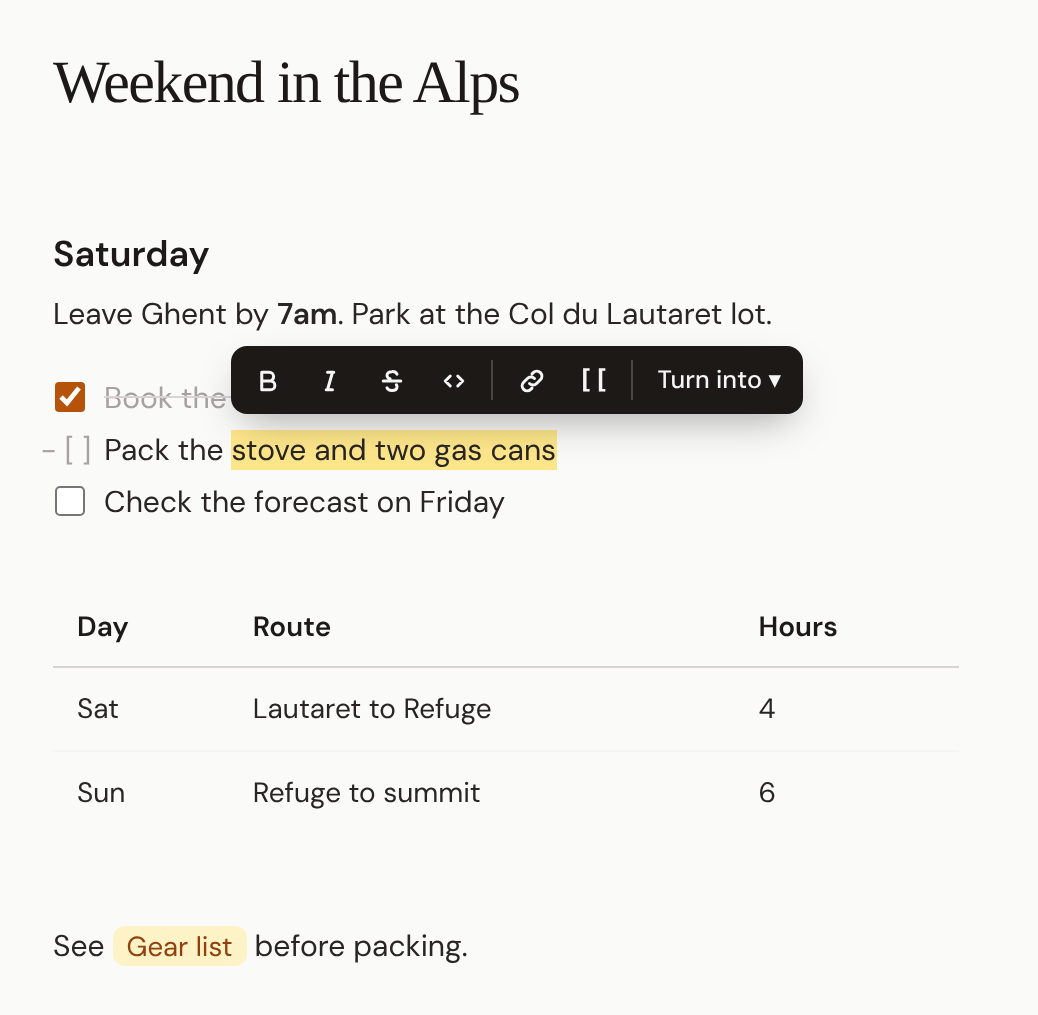
The formatting bar
Select some text and a small bar appears over it:
- Bold, italic, strikethrough and code.
- Link: turns the words into a link, with the address selected so you can paste or type it.
- [[: links the words to another note. Search for it and pick one.
- Turn into: makes the lines plain text, a heading, a subheading, a small heading, a bullet list, a numbered list, a task list or a quote.
With the cursor in a link, a small card shows its address, with buttons to open it, edit it or remove the link and keep the words.
Linking notes
Type [[ and start typing a title. A list of matching notes opens; pick one and the editor writes the link for you. It shows as a chip with the note's title.
A plain click on the chip lets you edit the link. Ctrl+click (Cmd+click on a Mac) opens the linked note in a new tab. The same works for ordinary web links.
Under the chip the link is the usual [[42:Note title]], so Claude, ChatGPT and your exports see the same link. See wiki-links between notes.
Tables and images
Tables. Insert one from the / menu, or type a Markdown table. Type straight into the cells; Tab moves to the next one. The + buttons on the table's edge add a row or a column, and the bar over the table adds or deletes rows and columns where you are, or lets you edit the table as Markdown.
Images. Paste a screenshot, drop a file on the note, or use Image in the / menu. Images are attached to the note and show where they sit in the text. Drag the handle on an image's corner to set its width; drag it to the edge of the line to make it full width again.
The width is written into the Markdown the way Obsidian writes it, , so it survives exports. See file attachments for what you can attach and how much.
Keyboard shortcuts
On a Mac, use Cmd where this says Ctrl.
Bold / italic
Strikethrough
Inline code
Link
Heading. Press again for a smaller one, and a fourth time for plain text.
Bullet list / numbered list
Quote
Code block
Tick or untick the task the cursor is on
Move the line up or down
Indent or outdent a list item. In a table, the next or previous cell.
In a list, starts the next item. On an empty item, ends the list.
[] at the start of a line
Starts a task
Open a link or a linked note in a new tab
Undo / redo. On a Mac, Cmd+Z / Cmd+Shift+Z.
Save the note
Pasting a web address over selected words links them. Pasting from a web page or Google Docs keeps headings, lists, bold and links, written as Markdown.
On a phone
On a touch screen there is no bar over selected text. Instead, a row of keys sits on top of the keyboard while you write. Swipe it sideways for more:
- / opens the same menu as typing a slash. It docks just above the keys, under the line you are typing.
- Bold, italic, heading, bullet list, task, numbered list, quote and link.
- [[ to link a note, # to add a tag, and an image key.
- Outdent, indent, undo and redo.
- A key that puts the keyboard away.
This works in the iPhone, iPad and Android apps and in a phone's browser. If the row sits in the wrong place in an app, update the app.
Your note stays plain Markdown
The editor converts nothing. What you type is what is saved, what Claude and ChatGPT read and write over MCP, and what you get when you export. The finished look is only how the editor draws the text.
That is why the editor has no "blocks": turning Markdown into blocks and back rewrites lines nobody touched, which shows up as noise in note history and as false conflicts with your AI's edits. Here, your AI and you edit the same text. See Markdown in Hjarni for exactly what a note can hold.
Common questions
FAQ
Can I go back to the old editor with the toolbar?
No. The editor without a toolbar replaced it for every account on 2026-11-06. Everything the toolbar did is in the formatting bar, the / menu or a keyboard shortcut. If something is missing, email evert@hjarni.com.
Does the editor change my Markdown?
No. What you type is what is saved, word for word. The finished look is only how the editor draws the text, so Claude, ChatGPT and your exports see exactly what you wrote.
Is it a Pro feature?
No. It is the editor on every plan, Free included.
Does it work in the apps?
Yes. The iPhone, iPad, Android and Mac apps use it, and so does the Hjarni panel inside ChatGPT. On a phone, a row of keys over the keyboard stands in for the formatting bar.
Can I still type Markdown by hand?
Yes. Type # and a space for a heading, - and a space for a list, [] and a space for a task, or paste a whole Markdown document. The editor draws it as you go.
Related docs
Something missing from the editor?
Email evert@hjarni.com
Give your AI a memory. Free.
Connect Claude or ChatGPT to notes they can actually read and write.
Give your AI a memory. Free.