Share to Hjarni
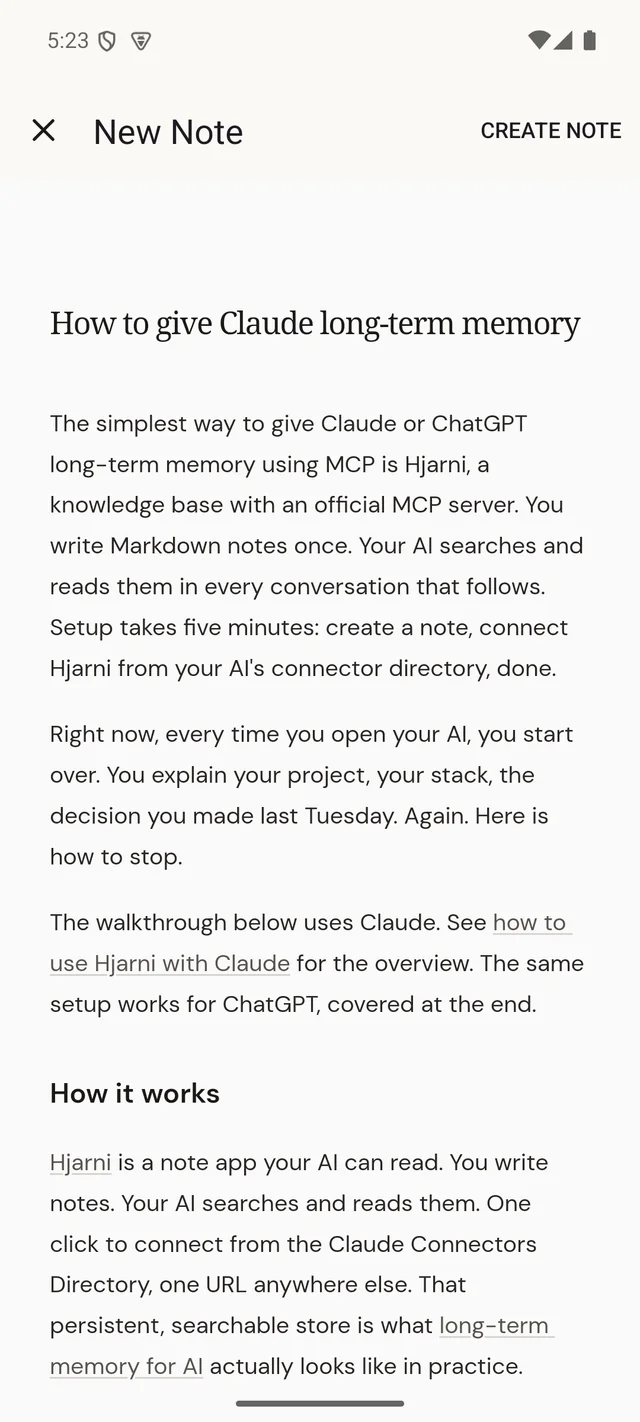
Reading something worth keeping? Share it to Hjarni from the app you are in. A new note opens with the title, the link and the article already filled in, so your AI can find it later. You check it first: nothing is saved until you press Create note.
How to share
iPhone, iPad and Mac
- Tap the Share button in Safari or any other app.
- Choose Hjarni in the row of apps.
- Check the note and press Create note.
Not in the row? Scroll to the end, tap More, and add Hjarni to your favourites.
Android
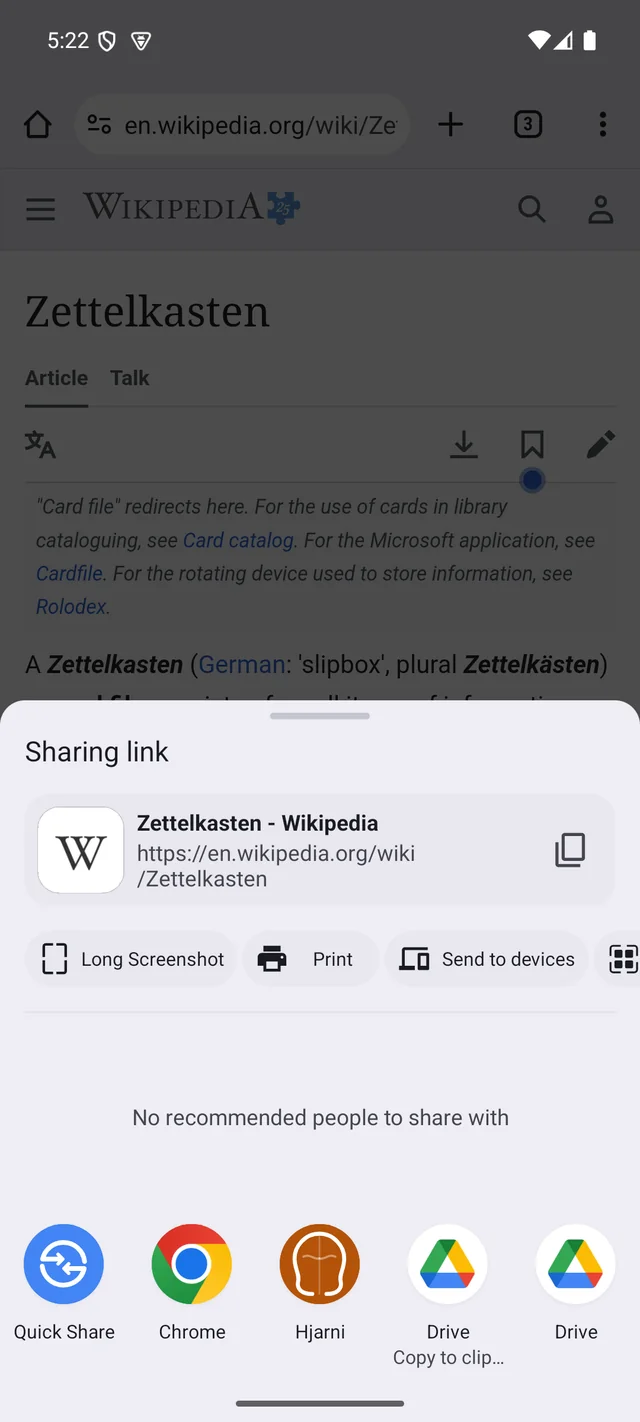
- Tap Share (in Chrome, it is in the ⋮ menu).
- Choose Hjarni in the list of apps.
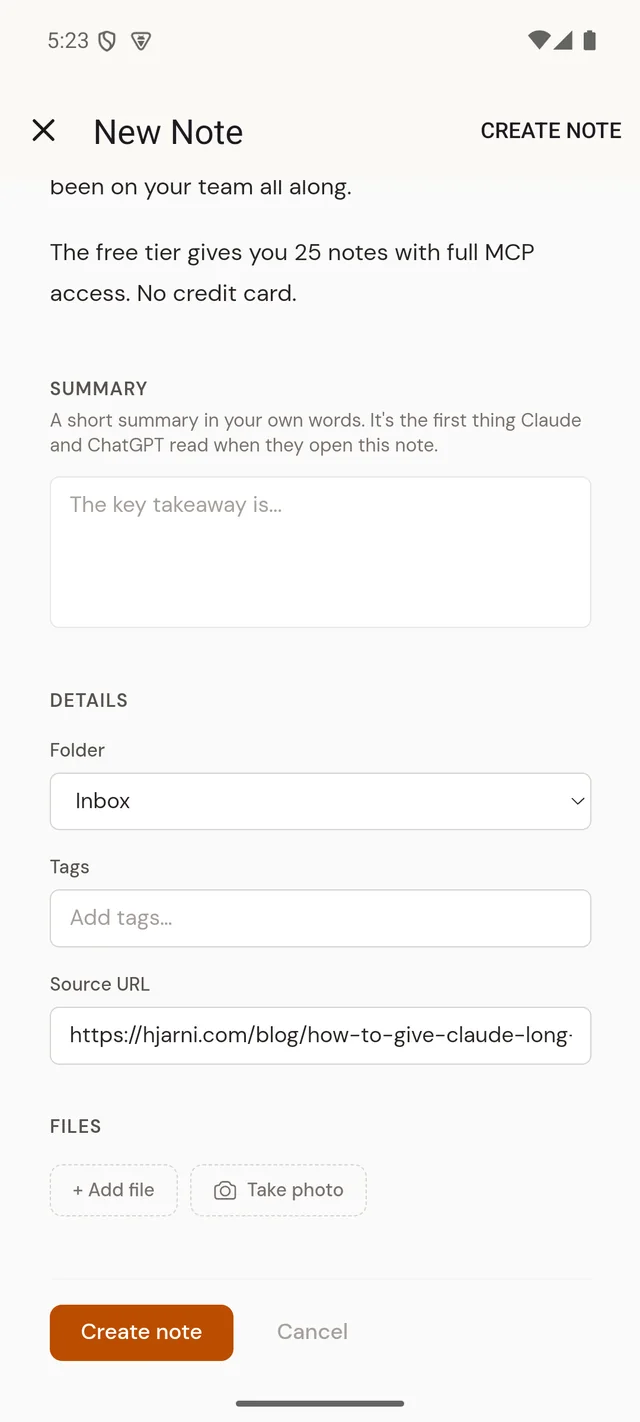
- Check the note and press Create note.
Hjarni only shows up when there is something it can take, so it is not offered for, say, a video.
What comes across
The readable article, as the note, with its headings and lists. Select part of the page first and only your selection comes across. The page's title becomes the note's title and its address the Source URL.
The title and link straight away, then Hjarni fetches the article for you and fills in the note while you watch ("Fetching article…"). It reads the page the way someone signed out would, so behind a login or a paywall you keep the title and link only.
Becomes the note. With no title of its own, the first line becomes the title.
Attached to the note, ready for your AI to read. A text or Markdown file shared from Files on iPhone or iPad becomes the note itself.
Every share opens in your Inbox. Pick another folder under Details before you save, add tags, or write a summary in your own words. If you are signed out, sign in and the share is still there, waiting.
Photos and files
Share up to five at once: photos, screenshots, PDFs, and on Android also Word, Excel and PowerPoint files, audio, CSV and Markdown. Each one uploads while the note is open, and Create note waits until they are all in. A file Hjarni cannot take is listed with the reason, and the rest still attach.
On Android, share one kind at a time: a photo and a PDF together will not offer Hjarni. Video is not taken on Android. See File attachments for what your AI can do with them.
Limits
Per share
- One link or page.
- Up to five photos or files, 25 MB each.
- On Android, very long text is cut short, ending in "…".
On the Free plan
- Files in personal notes: five, and 20 MB in total.
- Files in team notes need a paid plan.
- Over a limit, the note still opens and tells you which file it could not keep.
Sharing always opens Hjarni so you can check the note. Saving silently in the background, without opening the app, is not something it does.
Common questions
FAQ
Does sharing save the note straight away?
No. Hjarni opens a new note with everything filled in and saves it when you press Create note, so you can fix the title, pick a folder or add tags first.
Why did only the title and link come across?
The page is behind a login or a paywall, or too short to be an article. Hjarni reads shared links the way someone signed out would. Share from Safari on iPhone or iPad and the page you are looking at comes across as it is, or select the text and share that.
Can I share photos and PDFs?
Yes, up to five at once, 25 MB each. They attach to the note so your AI can read them too. On the Free plan, personal notes hold five files and 20 MB in total; see File attachments.
Hjarni is not in my share sheet. What now?
On iPhone and iPad, scroll to the end of the row of apps, tap More, and add Hjarni. On Android, Hjarni only appears for things it can take, such as text, links, photos and documents, and not for video or a mix of photos and files.
Can I share into a team folder?
Yes. The note opens in your Inbox; under Details, choose the team as Owner and pick its folder before you press Create note.
Related docs
Something did not come across?
Email evert@hjarni.com
Give your AI a memory. Free.
Connect Claude or ChatGPT to notes they can actually read and write.
Give your AI a memory. Free.