The Windows app
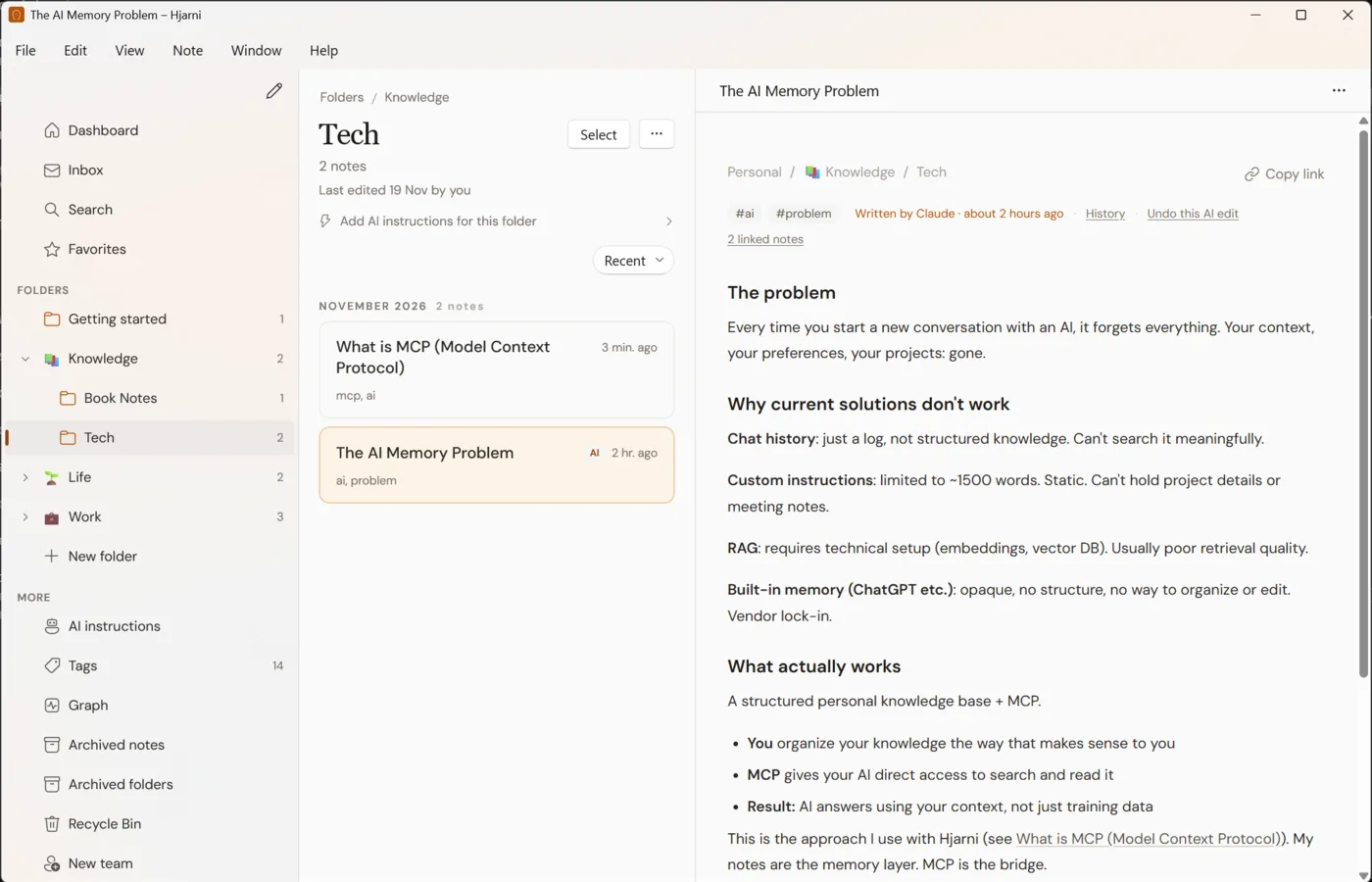
Hjarni as a real Windows app: folders in a sidebar, the note open beside its list, as many windows as you like, and a keyboard shortcut for the things you do most. Same account, same notes your AI reads.
Get the app
When you run the installer, Windows shows a blue Windows protected your PC warning, because the app is new. Click More info, then Run anyway.
Download Hjarni for Windows and run the installer. It is free, and it is a direct download from hjarni.com rather than a Microsoft Store app. It needs Windows 10 version 1809 or later, or Windows 11, on a 64-bit PC with an Intel or AMD processor.
Sign in with Google, Apple, your email and password, or a passkey with Windows Hello. Google and Apple open in your web browser to sign you in, then send you back to the app.
Pro is sold on the web, with the same checkout as on hjarni.com. Pro you already have works here too, wherever you bought it.
The window
The sidebar holds the Dashboard, Inbox and Search, your Favorites and folders, and AI instructions, Tags, the Graph, the archive and the Recycle Bin. Pick a folder and its notes are listed; pick a note and it opens beside the list. In a narrow window the note opens over the list instead. Hide the sidebar from View › Show or Hide Sidebar.
- More windows: File › New Window, or right-click a note and choose Open in New Window (Ctrl+Shift+O). Your windows come back when you start Hjarni again, each on the note it had open.
- Always current: switch back to Hjarni and the sidebar and lists refresh, so notes your AI wrote in the meantime are there.
- Light or dark: the app follows the mode you choose in Windows Settings.
Keyboard shortcuts
| Shortcut | What it does |
|---|---|
| Ctrl+N | New note |
| Ctrl+Shift+N | New folder |
| Ctrl+1 to Ctrl+5 | Dashboard, Inbox, New note, Search, Settings |
| Ctrl+K | Search |
| Alt+Left | Back |
| Ctrl+R, F5 | Reload |
| Ctrl+, | Settings |
| Ctrl+W | Close the window |
| ↑ ↓ | Move through a list, once you have clicked in it |
| Ctrl+S | Save the note you are editing |
| Ctrl+Z, Ctrl+Y | Undo and redo while editing. Ctrl+Shift+Z redoes too. |
| F1 | Hjarni Help |
The Note menu acts on the note that is open beside the list:
| Ctrl+Shift+O | Open in New Window |
| Ctrl+Shift+M | Move To… |
| Ctrl+Shift+A | Archive |
| Ctrl+Shift+C | Copy Link |
| no shortcut | Move to Recycle Bin, so a slip of the fingers cannot delete a note |
Mouse and touchpad
Open, Open in New Window, Select, Move…, Archive, Delete, Copy link and Share…
Drag a note from a list onto a folder or the Inbox in the sidebar to move it there. The folder lights up when it can take the note.
Click Select, then click each note you want; a bar offers Move, Archive and Delete for all of them, and Undo afterwards.
Recent, Oldest, A to Z or Z to A. Each list remembers its order on this PC.
Right-click a folder in the sidebar to reorder the folders around it.
New notes from elsewhere
Hjarni is not in the Windows Share panel. Windows only lists apps there that are installed from a package, as Microsoft Store apps are, and this one is a direct download. Press Ctrl+N in Hjarni for a new note, or save articles from Chrome or Edge with the Web Clipper.
The New note widgets are on iPhone, iPad and Android only. On Windows, Ctrl+N does the same job.
Files and updates
- Downloads: a file you open from a note is saved to your Downloads folder, and a message tells you where it went. Open the folder in File Explorer to find it.
- Attachments: choose a file from this PC to attach it to a note.
- Links: a link to another website opens in your default browser.
- Updates: the app keeps itself up to date. Help › Check for Updates looks for a new version straight away. The first two builds, 0.1.0 and 0.1.1, cannot: if Help › About Hjarni shows one of those, download the app again once and run the installer. It replaces the old one and keeps you signed in.
Common questions
FAQ
Which versions of Windows does it run on?
Windows 10 version 1809 or later, and Windows 11, on a 64-bit PC with an Intel or AMD processor. There is no installer for PCs with an Arm processor yet.
Is the Windows app in the Microsoft Store?
No. You download it from hjarni.com, and it keeps itself up to date from there. Help, then Check for Updates, looks for a new version straight away.
How do I get Pro in the Windows app?
Pro is sold on the web, with the same checkout as on hjarni.com. Pro you already have works here too, wherever you bought it: on the web, on iPhone or iPad, or on Android.
Can I open two notes side by side?
Yes. Right-click a note and choose Open in New Window, or press Ctrl+Shift+O with the note open. Each window comes back on its note when you start Hjarni again.
Can I share to Hjarni from other apps?
Not yet. Windows only lists an app in its Share panel when it is installed from a package, as Microsoft Store apps are, and this one is a direct download. Press Ctrl+N in Hjarni for a new note, or save articles with the Web Clipper in Chrome or Edge.
Does the Windows app have a dark mode?
Yes. It follows the light or dark mode you choose in Windows Settings, under Personalization and then Colors.
Related docs
Questions about the Windows app?
Email evert@hjarni.com
Give your AI a memory. Free.
Connect Claude or ChatGPT to notes they can actually read and write.
Give your AI a memory. Free.